
Learner guidance
Learner guidance
UKRIO online training courses
Accessing courses
Learners will access courses in one of two ways:
- URL method – via a direct link provided by their administrator
- Dispatch method – through their organisation’s Learning Management System (LMS)
Learners should check with their administrator to confirm which access method applies to them.
Instructions: URL users
Launching courses:
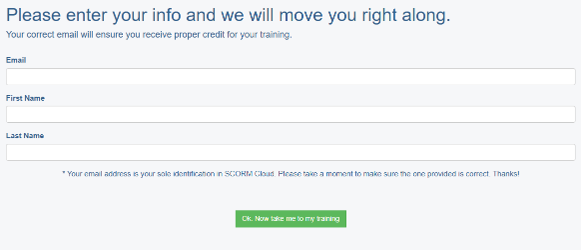
- Access the URL provided by your administrator
- Bookmark the login page (above) to return easily later
- Enter your organisational email, first name, and last name
- Click the green button to launch the course
Pausing and resuming:
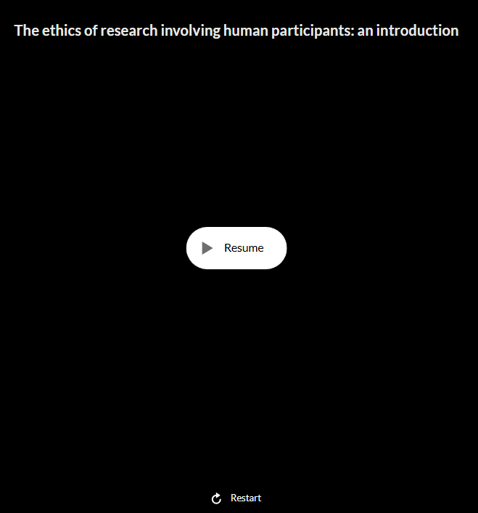
Learners can pause and resume courses as desired.
When re-entering a course, they are given two options:
- Resume – a large button that continues a course from the point they last reached.
- Restart – a small prompt at the bottom of the screen that begins a course from the very start.
Selecting Restart will erase all previous progress, so learners should use this option with caution.
Instructions: Dispatch users
Launching and navigating courses within organisational LMSs will vary based on how each system is configured.
Once your administrator has assigned the course to you, follow their instructions to locate and launch it within your LMS.
Compatible browsers
The course is designed for use on PC and Mac desktops or laptops with the following supported browsers:
- Microsoft Edge (PC)
- Google Chrome (PC/Mac)
- Firefox (PC/Mac)
- Safari (Mac)
For best performance, please ensure your browser is up to date, and enable cookies and pop-ups.
We do not recommend completing the course on mobile phones or tablets, as smaller screens and limited processing power may affect functionality.
Best practice for using courses
To help prevent technical issues when using courses, we recommend learners follow these guidelines:
- Close the browser when not using courses – leaving them open for prolonged periods may cause progress to be lost
- Complete modules in a single sitting where possible, especially quizzes and interactive components
- Use supported browsers. Ensure browsers are up to date and allow cookies and pop-ups
- Avoid use on mobile phones or tablets
- Ensure sufficient device performance – low memory or CPU can impact course performance
- Maintain a stable internet connection throughout each session
- Clear browser cache and cookies if experiencing loading issues
- Disable browser extensions that may interfere with course content (e.g. JavaScript or multimedia blockers)
- Check firewall or proxy settings if content is not loading properly
- Avoid using a VPN, as this can delay or disrupt content delivery
To troubleshoot course issues, visit our
Technical Support webpage.
Last updated: 09/12/2025